Portfolio Next.js
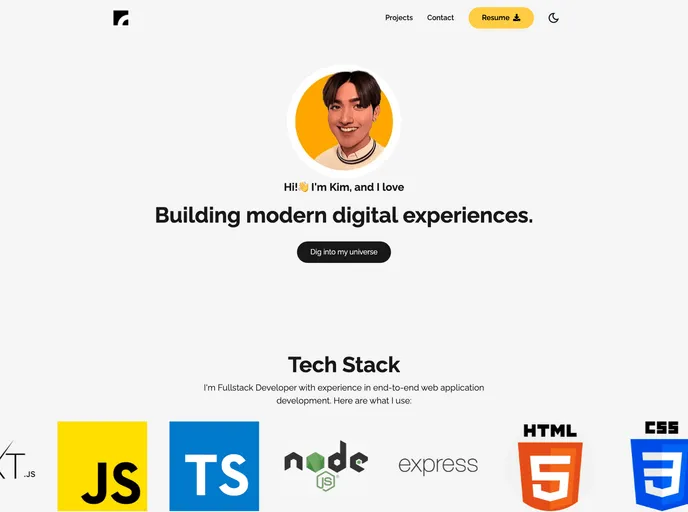
Open source portfolio template built with Next.js for developers to create their own portfolio website
Overview:
This document provides instructions for customizing a template and making contributions to a project. It includes information on folder structure, customizing the logo, navigation links, profile image, name, job title, job description, and project showcase.
Features:
- Customizable Logo: Replace the default logo image with your own logo.
- Customizable Navigation Links: Edit or delete the navigation links to fit your needs.
- Customizable Profile Image: Replace the default profile image with your own image.
- Customizable Name: Replace the default name with your own name.
- Customizable Job Title: Summarize what you do in five words and update the job title.
- Customizable Job Description: Update the job description with your own information.
- Connect With Me: Replace the "#" in the connect with me button with a link to your social profile, email, or phone number.
- Project Showcase: Customize the project cards by changing the project title, stack, and links.
Folder Structure:
The root page of the project is located at /pages/index.js.
Customizing the Logo:
To customize the logo, go to the Logo.jsx component and replace the /logo.png with your own logo link or replace the current logo image in the public folder with yours and rename it to logo.png.
Customizing Navigation Links:
Replace the "#" symbol with your respective link in the navigation links. Delete any nav-link that is not being used or edit the name with your own preferred link source. The last navigation link is the highlighted yellow button on the template, styled with the classes btn and btn-primary.
Customizing Profile Image:
Replace the default icon or user profile with your own profile image. The image can be found in the Hero.jsx component. You can either add the image locally by replacing it with /public/profile-image.png or replace the src link in the Hero.jsx with your preferred image. It is recommended to use your GitHub profile image link, so the image will update automatically when you update it on GitHub.
Customizing Name:
Edit the name on the welcome message with your own name. This line of text can be found in the /docs/index.html file. Replace "Jessica" with your own name.
Customizing Job Title:
Summarize what you do in five words and add it into the <h2></h2> line. The first two words should be added in the first <h2> element and the remaining four words should be added in the next <h2> element.
Customizing Job Description:
Update the job description with your own information. It is recommended to use 20 words for the job description.
Connect With Me:
Replace the "#" in the "Connect With Me" button with a link. You can choose what link you want your visitors to go when they click this button. It can be a social link, email address, or phone number. Use <a href="mailto:user@gmail.com" className="btn btn-secondary">Connect With Me</a> for an email link or <a href="tel:+23400000000" className="btn btn-secondary">Connect With Me</a> for a phone number link.
Customizing Project Showcase:
The project showcase section displays projects using screenshots. By default, it has 3 columns and 2 rows, but you can add more columns according to your use case. The number of columns and rows is controlled by the .project class.
To customize the project cards, you can change the project title, stack, and links. The project title is controlled by the <h3></h3> element. Edit the text to add your preferred project name. The project stack is displayed in the <p></p> element. Edit or delete the line to include the specific tools or technologies used in building the project. The project links are the icons on the top right of the project cards.
Summary:
This document provides instructions for customizing a template and making contributions to a project. It covers various aspects of customization, including the logo, navigation links, profile image, name, job title, job description, and project showcase. By following the provided instructions, users can easily personalize the template to fit their own preferences and requirements.